
How to Use Marketplace
Marketplace Overview
The Blockware Marketplace is your central hub for managing and optimizing your Bitcoin mining operations. It serves two primary functions: first, as a powerful tool for monitoring your miner fleet, allowing you to track performance metrics, energy consumption, and revenue in real time; and second, as a dynamic platform for trading mining rigs, where you can buy and sell ASICs with ease.
In addition to these core capabilities, the Marketplace offers a variety of supporting functions designed to streamline your mining experience, including payment management, support services, and performance analytics. In the following sections, we'll dive deeper into each of these features, providing you with a comprehensive understanding of how to make the most of the Blockware Marketplace.
Marketplace Tabs at-a-Glance
Below is a top-level summary of the menu items in Blockware Marketplace:
Dashboard: Overview of your miner fleet's performance and key metrics.
Marketplace: Buy and sell mining rigs with real-time offers and bids.
Wallet: Manage your Bitcoin wallet for transactions and mining rewards.
Miners: Monitor the status and performance of your individual mining rigs.
Transactions: Track and review your past and current marketplace transactions.
Buy Bitcoin: Purchase Bitcoin directly through integrated exchange options.
Learn: Access educational resources and guides on Bitcoin mining and the marketplace.
Support: Get help and submit support tickets for technical and billing issues.
Settings: Customize your account preferences and manage your personal information.
Getting Started
Setup your account and add your BTC Wallet to get started!
Account Setup
Setting up an account is easy! With that, we need a little information about you before you begin your mining journey. It only takes a few minutes and steps to complete your account setup.
Creating an Account: Begin by navigating to the Blockware Marketplace homepage and clicking on the "Sign Up" button.
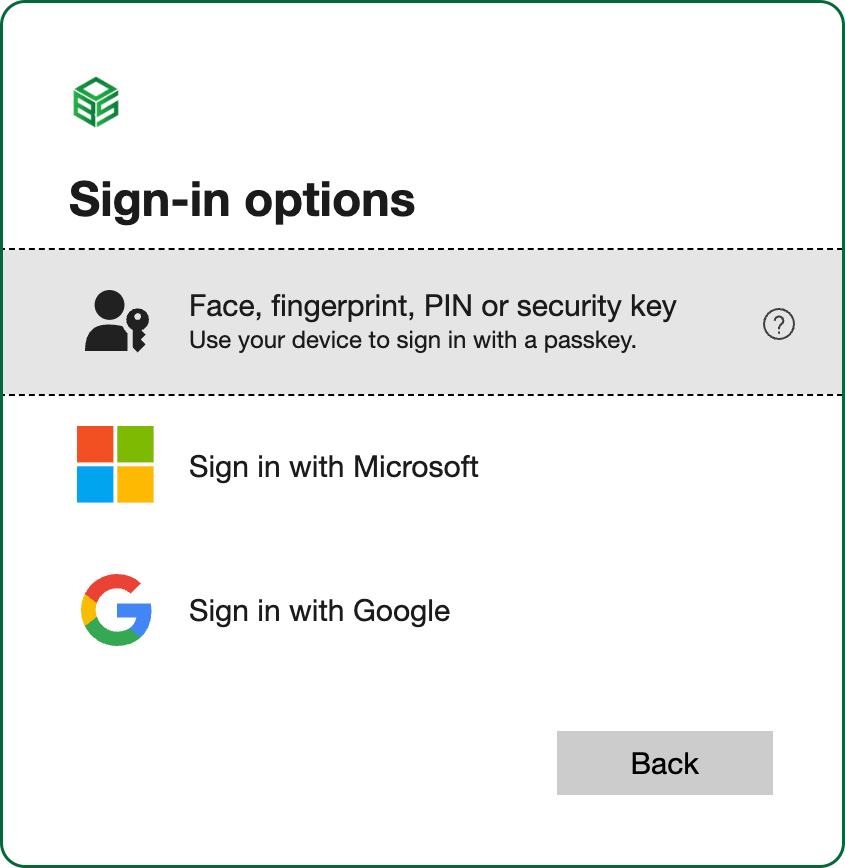
If you have a Microsoft account you can use that to sign in or you can create a new Microsoft account. You can also access Google or Passkey logins by selecting “Sign-in options”.
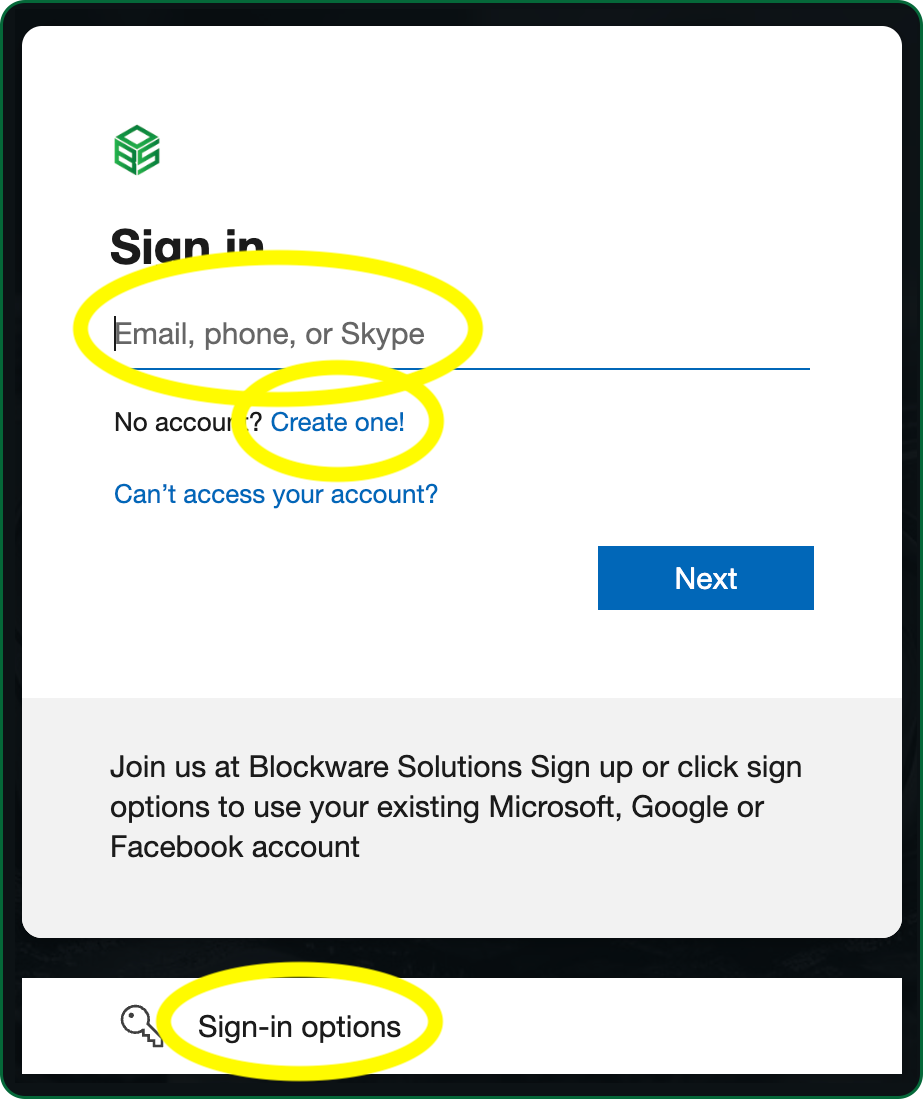
Sign-in options brings you to this screen where you can use a Passkey or sign in with a Google account.
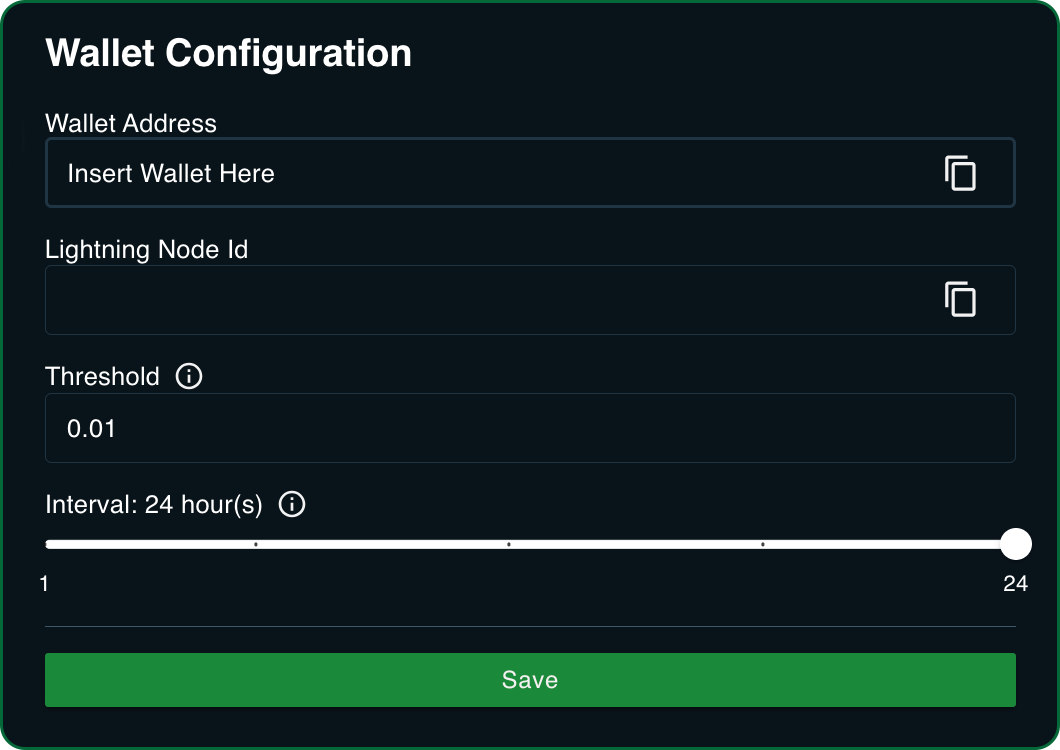
Wallet Configuration
Upon account creation, configure your Bitcoin wallet by entering your wallet address. This wallet will be used for receiving mining rewards and conducting transactions within the marketplace.
Wallet Threshold & Interval: Your wallet threshold indicates the minimum amount of rewards mined (Threshold) and how often you would like that amount deposited to your Wallet (Interval). For example, you may configure your account to make a rewards deposit to your account when your pending rewards balance is .01 BTC and do that every 24 Hours as required. Depending on your total Hashrate, you may reach .01 BTC over a week or over a month. If you expect daily rewards deposits, set your threshold less than or equal to your average 24 hour Revenue. If minimizing UTXOs is your priority, you may choose to set your Threshold higher and receive less frequent payouts.
Wallet Freezing Time: Your Wallet configuration is directly tied to the Blockware Pool and your rewards payouts. Anytime you make a change to your Wallet configuration, to ensure you continue to receive your payouts properly, your wallet is “frozen” for 24 hours. This means you cannot make another configuration to your Wallet during that time period. You can see the remaining time on your Wallet Freeze in the Wallet section of Marketplace.
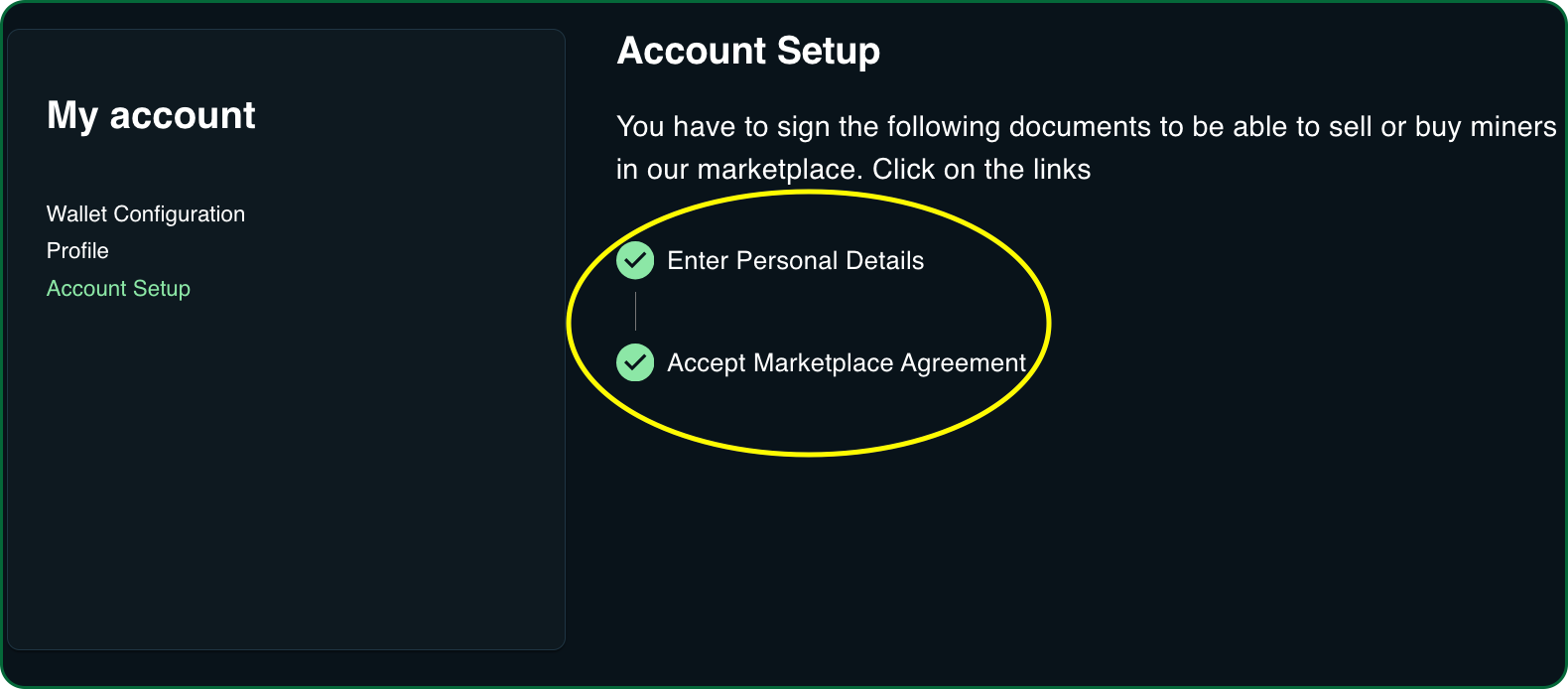
Profile & Personal Details
Update your profile with necessary details like your username, timezone, name, birthday, and address information
Accept the Marketplace Agreement
The Marketplace Agreement is the master end user agreement required to begin trading on the platform. It is your responsibility to read and understand this agreement.
Switching Between Currencies
Toggle Marketplace currency values from USD to BTC.
Default Currency Display: The marketplace displays prices and revenue in USD by default.
Switching to BTC: You can change the currency displayed across the site by toggling the currency display between USD and BTC near the top of the page. This setting will apply globally across all sections of the marketplace.
Current Bitcoin Price: In the Marketplace, you are always aware of current Bitcoin price action. The price of BTC will update automatically as you navigate through the site.

Dashboard
The dashboard is your control center, providing an overview of your mining operation's performance and financial status.
Dashboard Summary
Total Revenue (24h): This section shows your total earnings from mining over the past 24 hours, presented in the chosen currency (USD or BTC).
Total Hashrate (24h): Displays the cumulative hashrate your miners have achieved in the last 24 hours.
Total Power Usage (24h): Shows the total amount of power consumed by your miners in the last 24 hours, helping you monitor efficiency.
Total Miners: Number of Miners you own
As we have discussed, periodically, miners require maintenance. In the event a Miner is disabled for maintenance you will be notified here.

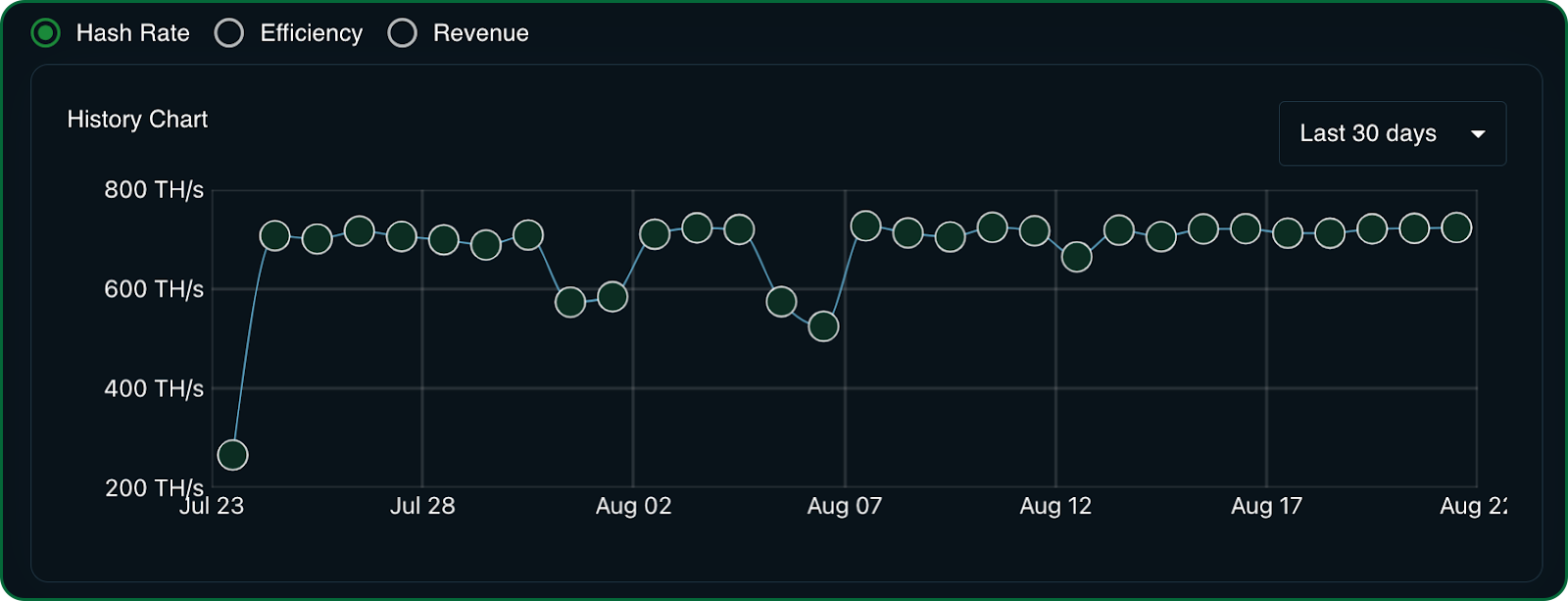
Hash Rate, Efficiency, and Revenue History Chart
Get all the important Miner metrics in a single chart experience!
Last 7 Days, 14 Days, 30 Days: Transparency is a key factor in choosing a hosted mining partner. You need a clear and on-demand view into your mining fleet. Your miner performance can vary for a number of factors including weather, curtailment requirements, or scheduled maintenance to name a few. Visualize and keep track of your mining performance over different time periods, with charts displaying historical data for hash rate, efficiency, and revenue.
Hash Rate: Track the computing power your miners contribute to the Bitcoin network.
Efficiency: Monitor how effectively your miners are converting electricity into hashrate.
Revenue: Review your earnings over the selected timeframe.
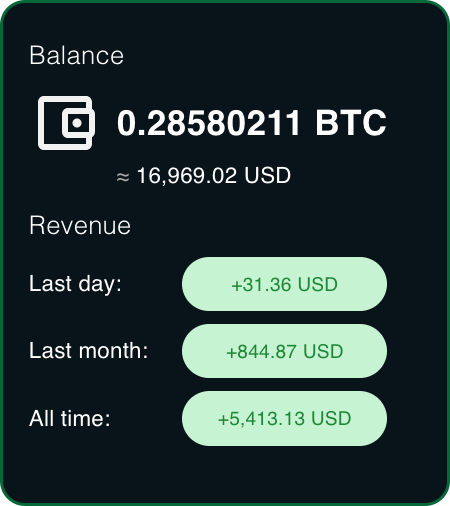
Wallet Balance & Revenue Summary
This section provides a quick glance at your current wallet balance, along with a breakdown of revenue generated from your mining activities.
Balance: This is your Wallet balance in BTC and equivalent USD based on the current BTC price. Remember, this is your wallet (not a Blockware custodial). This means that the total balance of your Wallet will reflect your total balance and not necessarily just the Mining Rewards or Sales Proceeds acquired with Blockware.
Revenue: Your Blockware Mining revenue for the last day, month, and all-time.
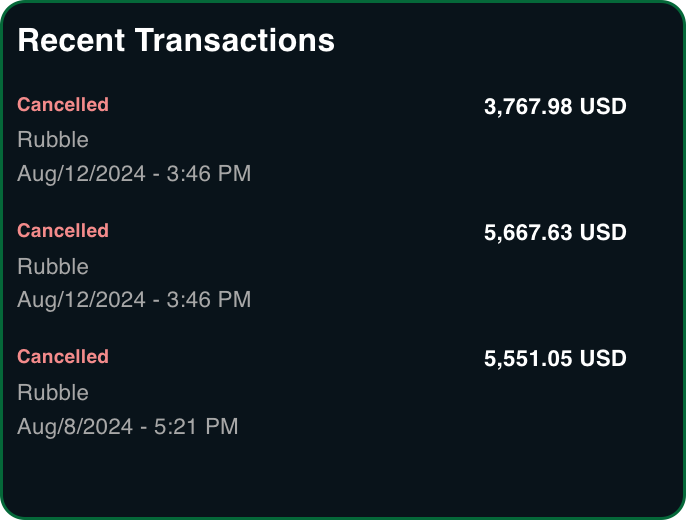
Transaction Summary
The transaction summary provides a quick glance at recent trades on the Marketplace.
Recent Transactions: Displays a list of your most recent transactions, including purchases and sales.
Cancellations or Failed Transactions: If a transaction was canceled or failed, details of the transaction will be displayed here.
My Miners Summary
Miners: Provides a quick summary and access to your mining fleet, organized by model, with total hashrate and power consumption.

Miner Marketplace
Explore the Miner Marketplace bid, buy, sell miners with other Marketplace users.
Marketplace Summary
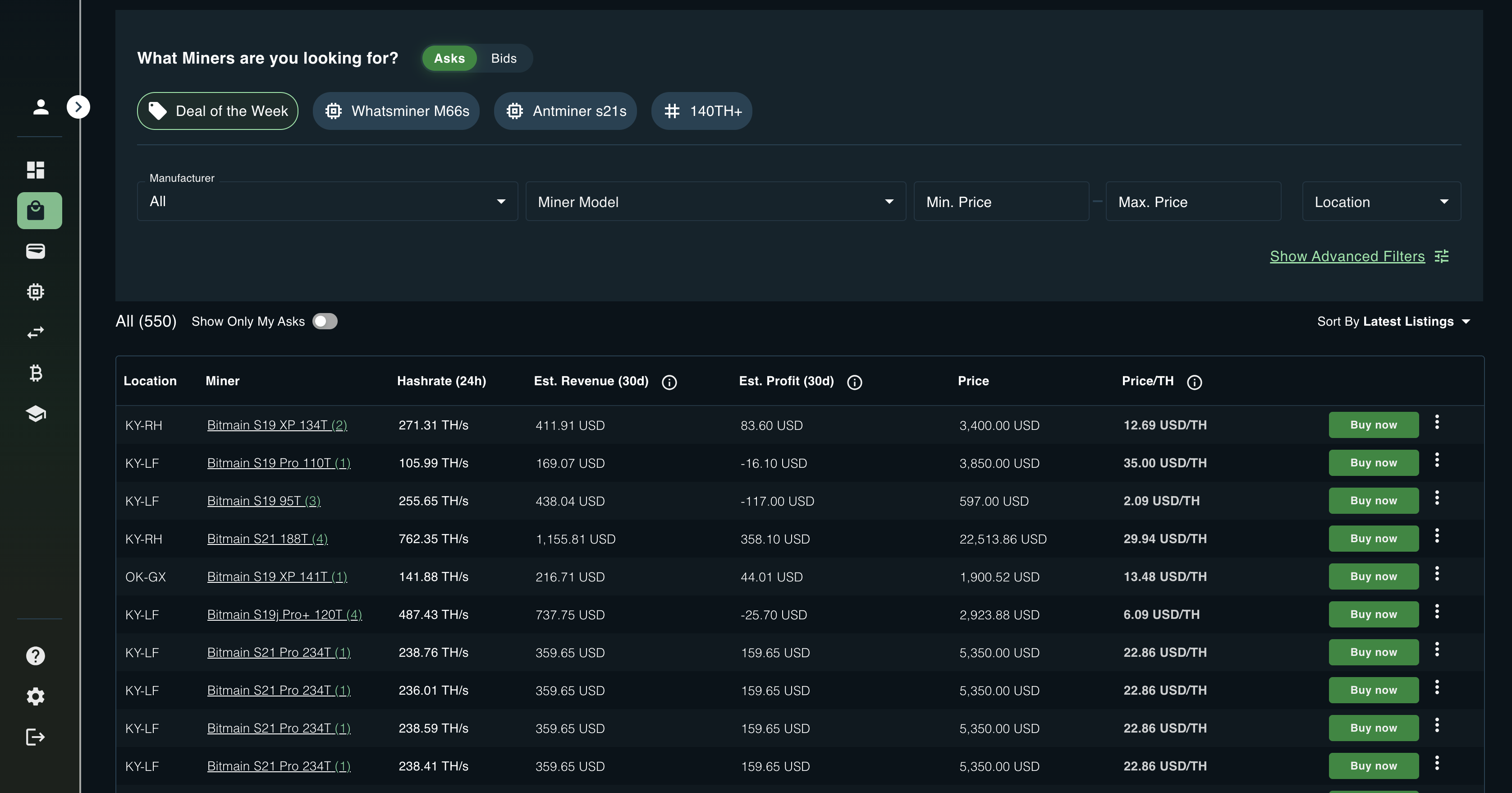
The Miner Marketplace is a peer-to-peer platform where users can buy and sell hosted miners. Prices are determined by the current owners or sellers, fostering a competitive free market for trading Bitcoin miners. This Marketplace enables users to start mining, mitigate risks, or exit mining at any time, providing liquidity to what is traditionally an illiquid market. Blockware’s Marketplace stands out as a significant innovation in the hosted Bitcoin mining space, offering flexibility and transparency to participants.
Search and Filters
Below is a summary of the search and quick filters on the Marketplace:
Quick Filters: Pre-built filters for common searches or promotions like our “Deal of the Week” that highlights unique opportunities.
Search: Use the search bar to quickly locate specific offers based on the model type.
Search Filters: Apply filters such as location, miner model, hashrate, efficiency, and price to narrow down search results.
Sort Offers: Sort available offers by price, hashrate, or other relevant criteria to find the best deals.

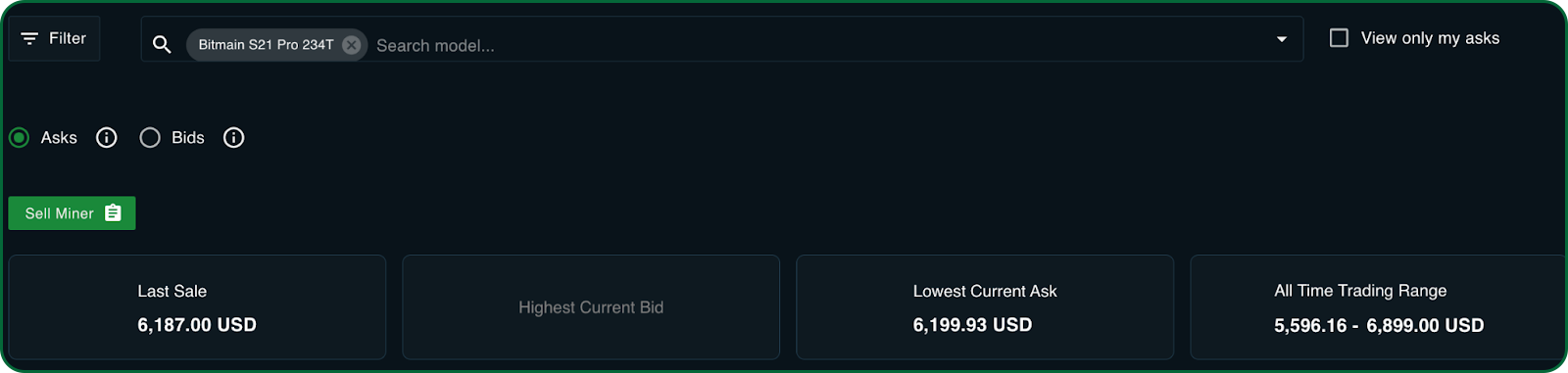
Historical Trading Range Summary
When a Model search filter is selected, a historical summary of Asks, Bids, and Sales will be displayed above the filtered offer list.
Last Sale: The value of the most recent sale in USD or BTC
Highest Current Bid: The highest current Bid in USD or BTC
Lowest Current Ask: The lowest current Asks (Offer Listing) in USD or BTC
All-time Trading Range: The historical trading range of the model in USD or BTC. This can be filtered to show last 7 days, last 14 days, or last 30 days.
Marketplace Asks - Offer Listings
Offer Fields: Each listing includes critical information such as the miner's model, hashrate, power usage, and the location of the hosting facility.
Location: The location of the hosting facility where this ASIC is operating.
Miner: The specific model of the ASIC miner being offered.
Hashrate (24h): The hashrate the miner has produced over the past 24 hours.
Estimated Revenue & Profit: Calculations are based on the current block subsidy and a 30-day average of network transaction fees.
Cost per TH: Displays the cost per terahash (TH), assisting you in assessing the miner's value per unit of hashrate.
Offer Bundles: Some listings may include multiple miners bundled together and priced based on a value cost per terahash in bulk.
View Offer Details: Click on an offer to see a detailed breakdown, including technical specifications, historical trading range, profitability, contract terms, similar offers, and open Bids.
Buy Now: if you know what you are looking for, "Buy Now" begins your checkout, confirms the transaction details & terms, and routes you to payment.
Selling a Miner
You can sell the Miner(s) you own at any point by listing them on the Marketplace as an Ask. Selling your miners is easy and simply involves you creating an offer (or bundled offer) and setting a price.
Clicking “Sell Miner” on the Miner Marketplace will route you to the My Miners page where you can create an Offer. We will cover this in greater detail in the next section - “My Miners”

Marketplace Bids
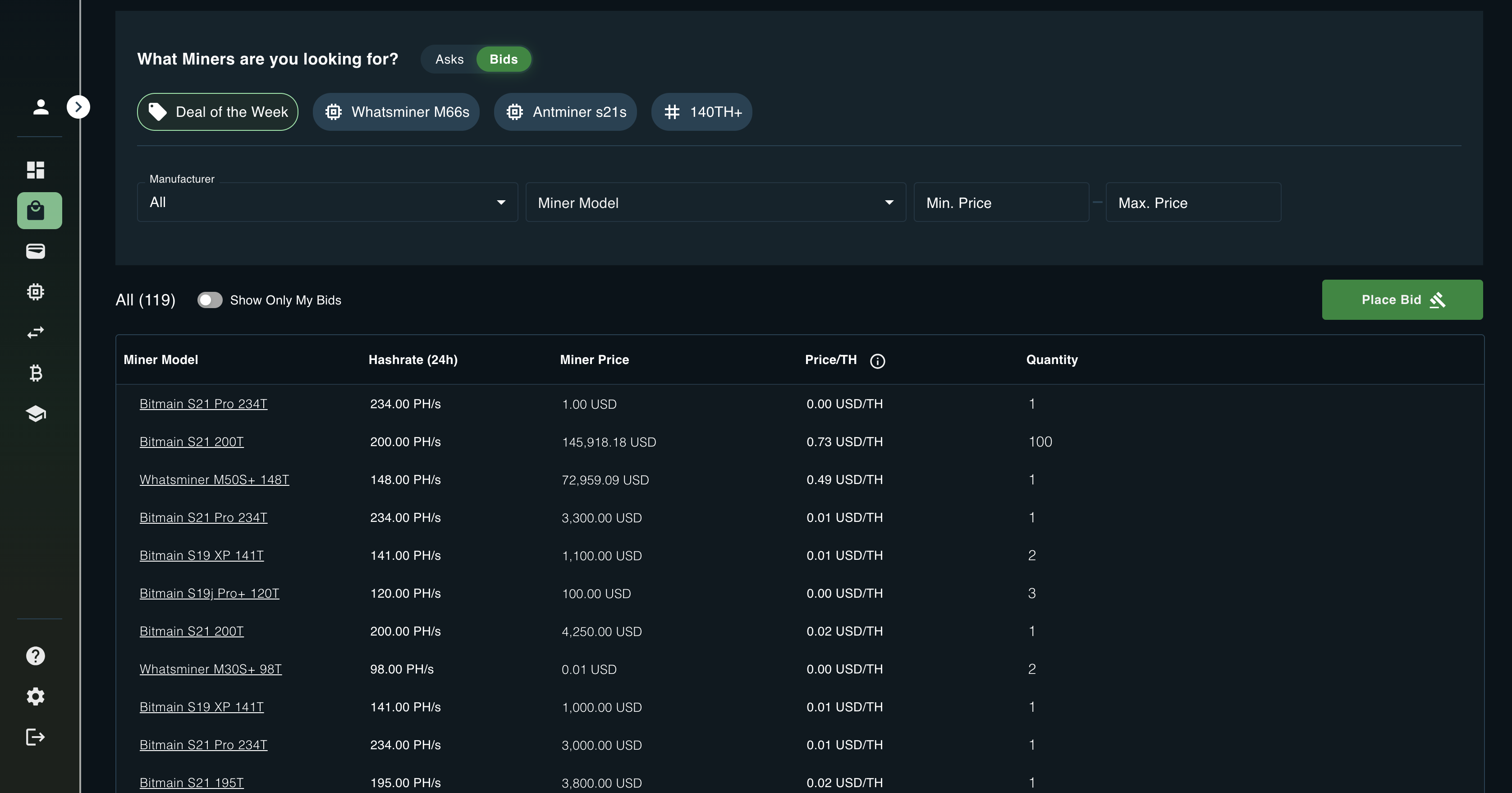
Bids allow users to set a price they are willing to pay for a specific model and quantity of Miners on the Marketplace. You can view open bids by toggling the Marketplace view from “Asks” to “Bids”.

Bids List Fields: Each Bid includes critical information such as the mine model, hashrate, price, and the quantity desired.
Miner: The specific model of the ASIC miner being offered.
Hashrate (24h): The hashrate the miner has produced over the past 24 hours.
Target Price: The target price for the miner model at the desired quantity
Quantity: Some listings may include multiple miners or additional services.
Placing a Bid
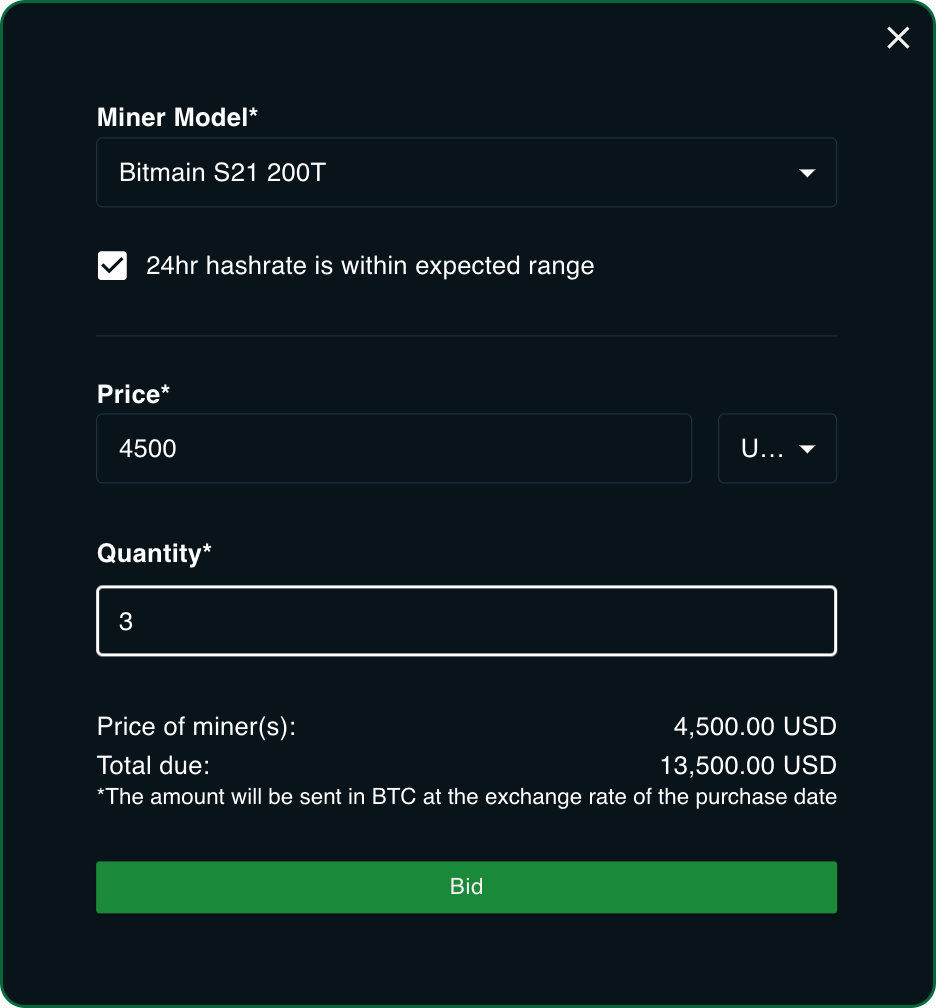
Placing a Bid allows you to express interest in purchasing a Miner Model at a lower price than the current Ask. Bids give sellers insights into the fair market value by showing what buyers are willing to pay. Typically, final sale prices fall between the highest Bids and lowest Asks.
When a Bid is placed, sellers receive an email notification and may lower their Ask to match. If the seller reduces their price within 10% of an open Bid, the Bidder receives an email alert with a direct link to the offer. You can create a Bid from the Marketplace Bids list or directly from any offer by clicking “Place Bid.”

Place Bid Fields:
Miner Model: The Miner Model of the Bid
24hr Expected Hashrate: As we have discussed, Miners have a varying degree in performance based on a number of different factors. Check this box to ensure the recent 24hr Hashrate is within expected range (+-10%)
Price: The unit price you are bidding or willing to pay for the model in BTC or USD
Quantity: The quantity or number of units you are interested in purchasing
My Miners
The control center for your mining fleet!
Selling a Miner
As discussed before, you can sell the Miner(s) you own at any point. Selling your miners is easy and simply involves you creating an offer (or bundled offer) and setting a price.
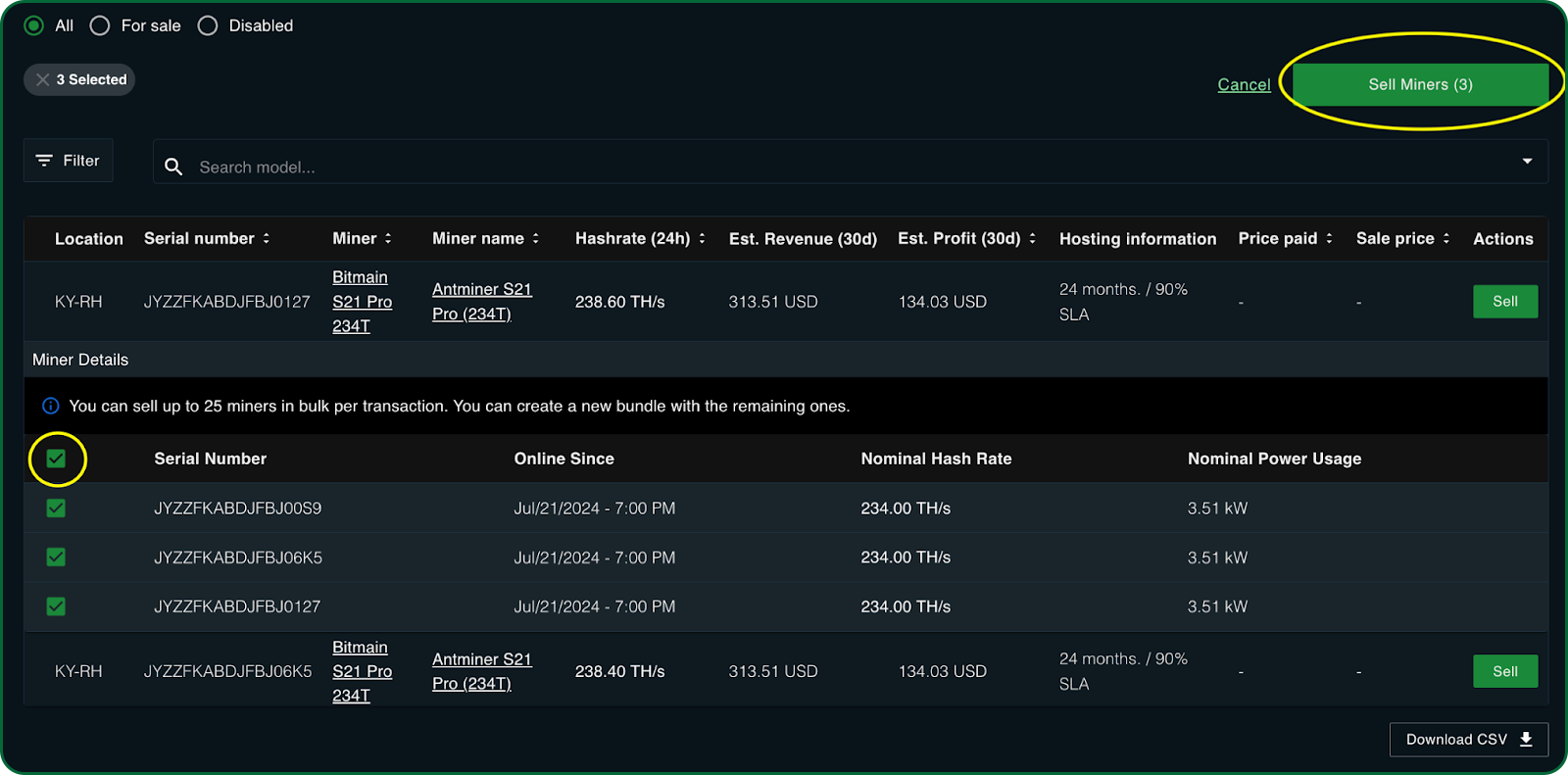
Sell your Miner(s) from the My Miners by clicking “Sell Miners”.
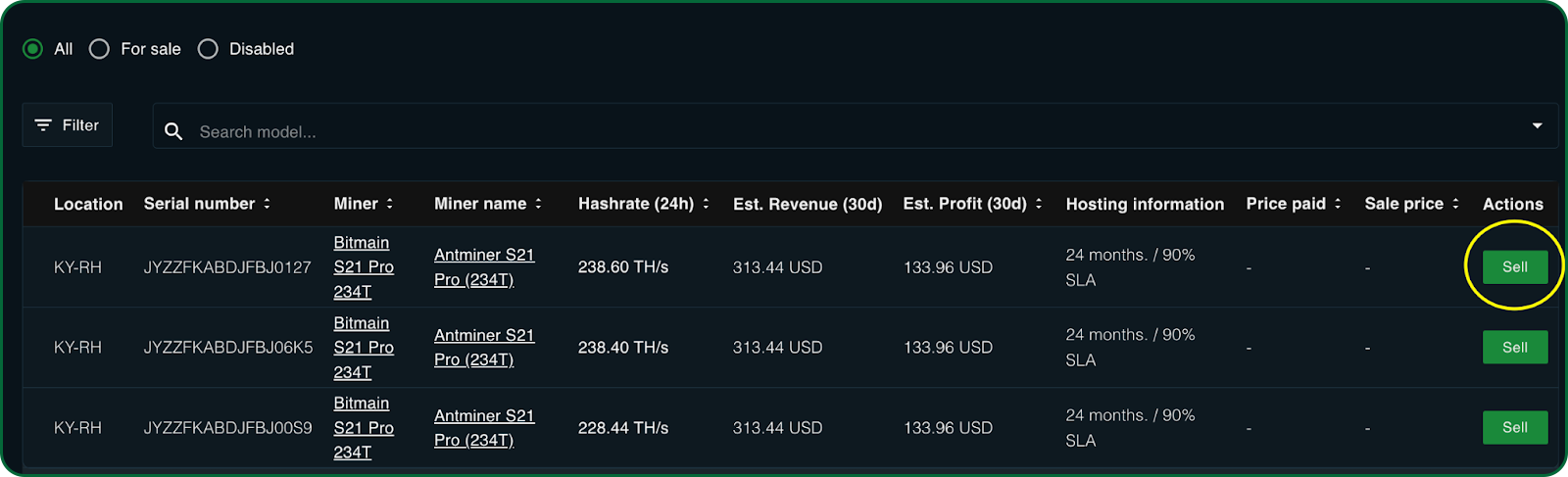
Select one or many Miners of the same Model to sell as a single Miner offer or a bundle of Miners.
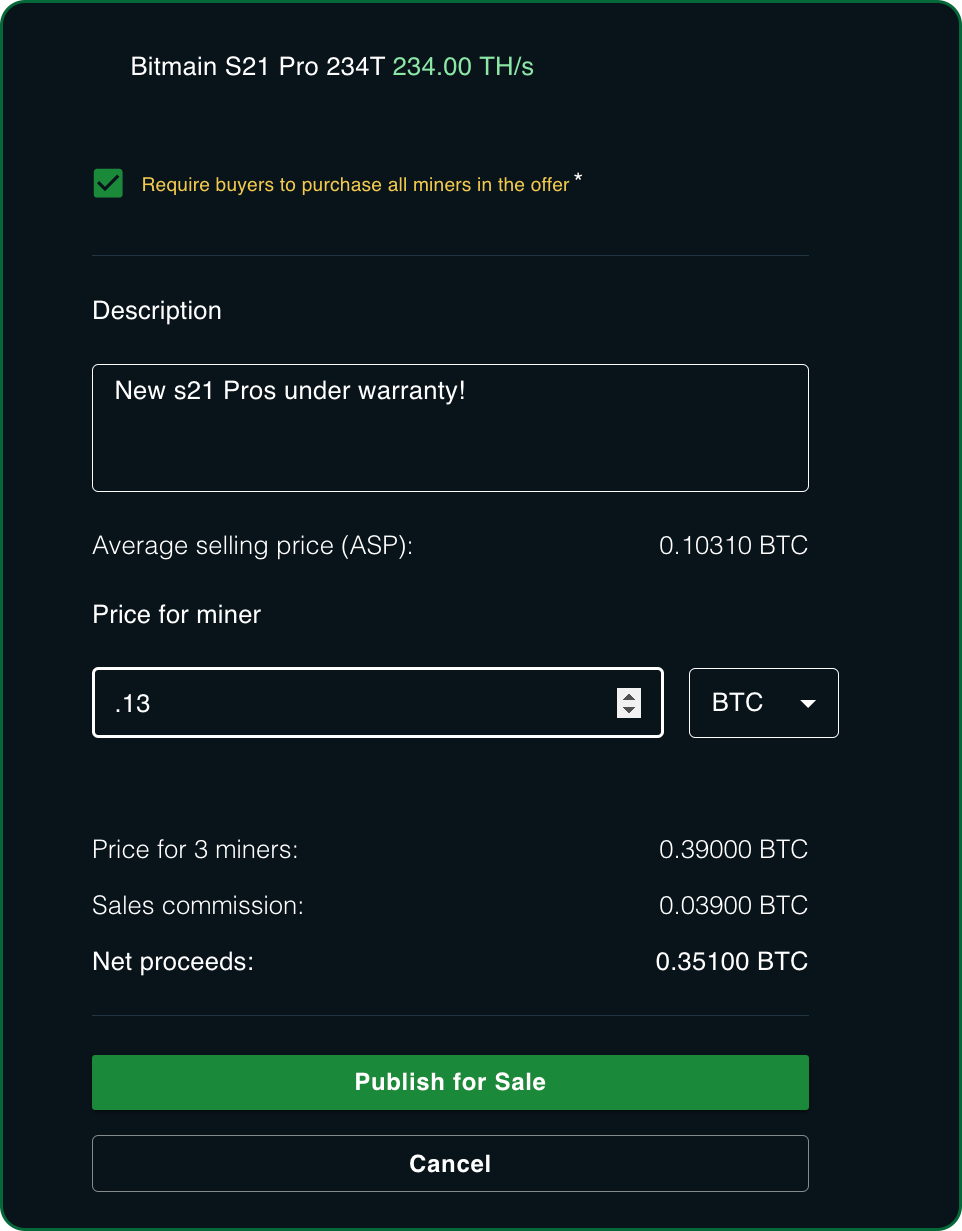
Create the Ask Offer and Publish for Sale
Description: The description of the offer available to buyers on the offer detail
Average Selling Price (ASP): The average selling price for the Miner model you have selected to sell.
Price for Miner: The unit price for the Miners in BTC or USD
Total Price: The total price for the offer based on the quantity of Miners in the bundle
Sales Commission: Blockware receives a 10% commission on all Trades on the platform. The Commission details the expected Commission you will pay when/if your Offer sells.
Net Proceeds: Your Total Offer Price minus the Blockware commission
Monitoring Miners
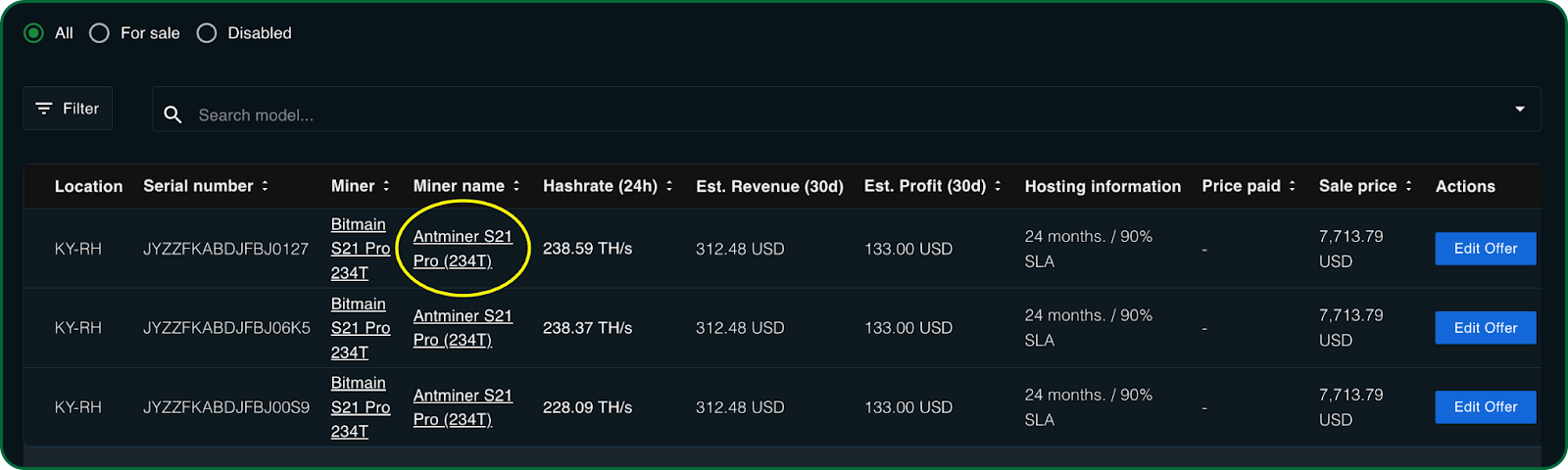
Managing and monitoring your fleet is important to determine your revenues and ultimately your profits. Blockware provides on-demand access to your Mining fleet with live and historical Hashrate, Power Usage, Revenue, and Profit.
Select a Miner from the My Miners list by clicking on the hyperlinked Miner name.
Miner Details
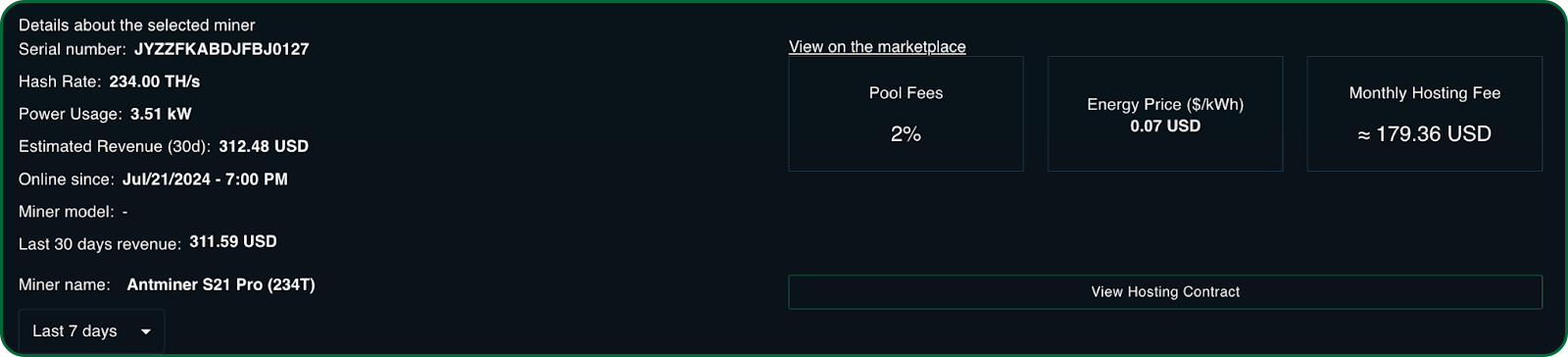
Drill into the details of each miner in your fleet.
Serial Number: The serial number of the machine from the manufacturer. This is the unique identifier for your Miner(s) you own and used by the manufacturer in warranty related repairs.
Hashrate: The expected hashrate of the Miner Model as indicated by the machine’s nameplate. Actual performance may vary slightly (+ or -).
Power Usage: The expected power consumption of the Miner Model as specified by the nameplate. Actual usage may also vary slightly (+ or -).
Estimate Revenue (30d): The estimated 30d revenue of the machine based on the Miner Model nameplate expected hashrate and power usage.
Online Since: The date the Miner first came online. This tells you how new (or old) the machine is.
Miner Model: The manufacturer Miner Model.
Last 30 Days revenue: The actual 30d revenue of the machine based on the Miner actual hashrate and power usage.
Miner Name: The Blockware internal name of the Miner (usually mimics to the Model name)
Pool Fees: The Blockware Pool fees applied to your mining rewards. This pool fee can vary from site-to-site and/or model-to-model and is transparently available for view at Purchase.
Energy Price: The Energy Price applied to your hosting bill per KW/h usage. This is the energy contract selected during your purchase process.
Monthly Hosting Fee: Your calculated expected Monthly Hosting fee calculated as - Hours-In-Month * KW/h Consumption * Energy Price.
Miner Performance Chart
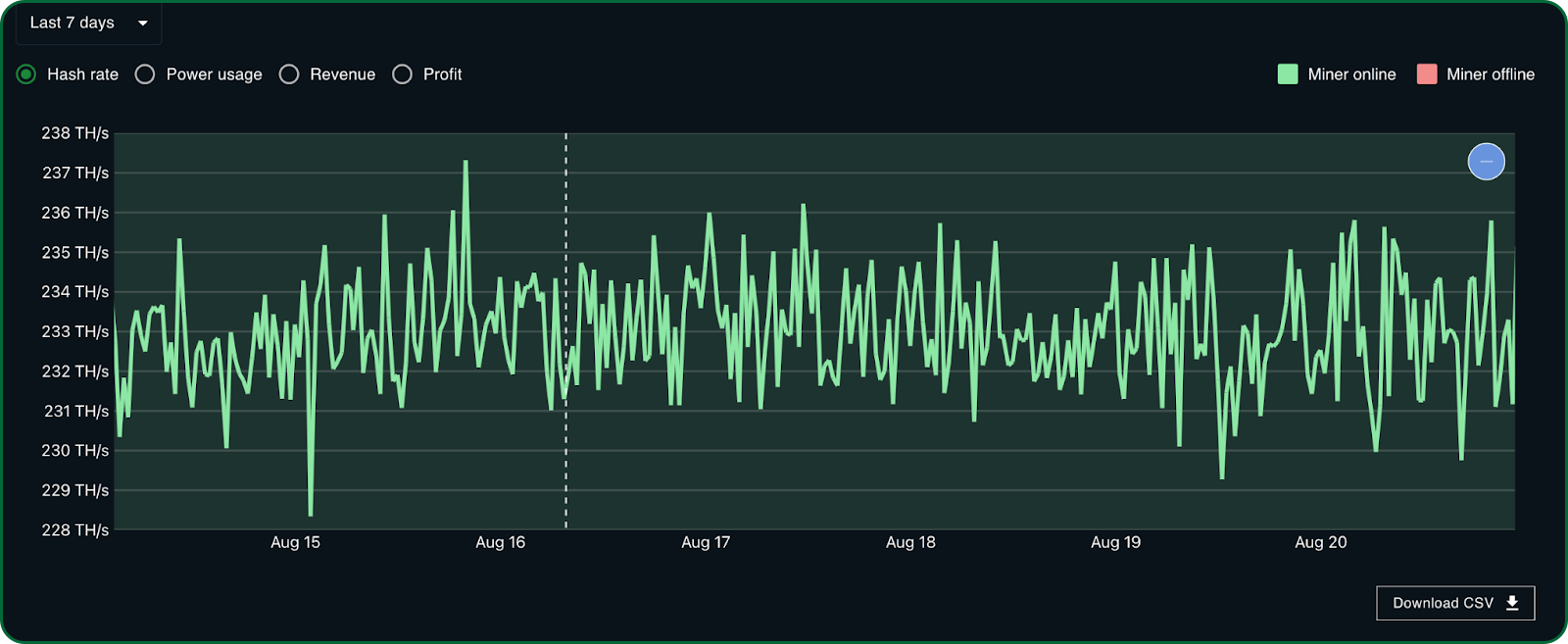
See live performance charts of each miner and download miner data to CSV for your records.
Historical Time Frame Filter: Filter the Miner Performance Chart to show Last 7 Days, Last 14 Days, or Last 30 Days of information.
Download CSV: Download the selected data set based on the historical time frame selected to CSV. Many Miners choose to collect historical data on their Miners for their own personal records
Hashrate: View Hashrate over the selected historical timeframe for the selected Miner.
Power Usage: View Power Usage over the selected historical timeframe for the selected Miner.
Profit: View Daily or Hourly Profit over the selected historical timeframe for the selected Miner.
Miner Status: The Miner Performance will show Miners online in GREEN and Miners offline in RED. Again, periodically, and as required, a Miner may require maintenance be taken offline.
Managing Offline or Disabled Miners
In the event you have a miner that requires maintenance you will work directly with Blockware's operations support team to get you back online!
In many cases, repairs can be made quickly and easily in-house by our expert mining operations team. In other cases, Miners need to be sent out for repair directly to the Manufacturer. Our staff will guide you step-by-step through the repair/maintenance process.
You can access our support portal through the Marketplace Support page and sign up for a support account here.
Wallet
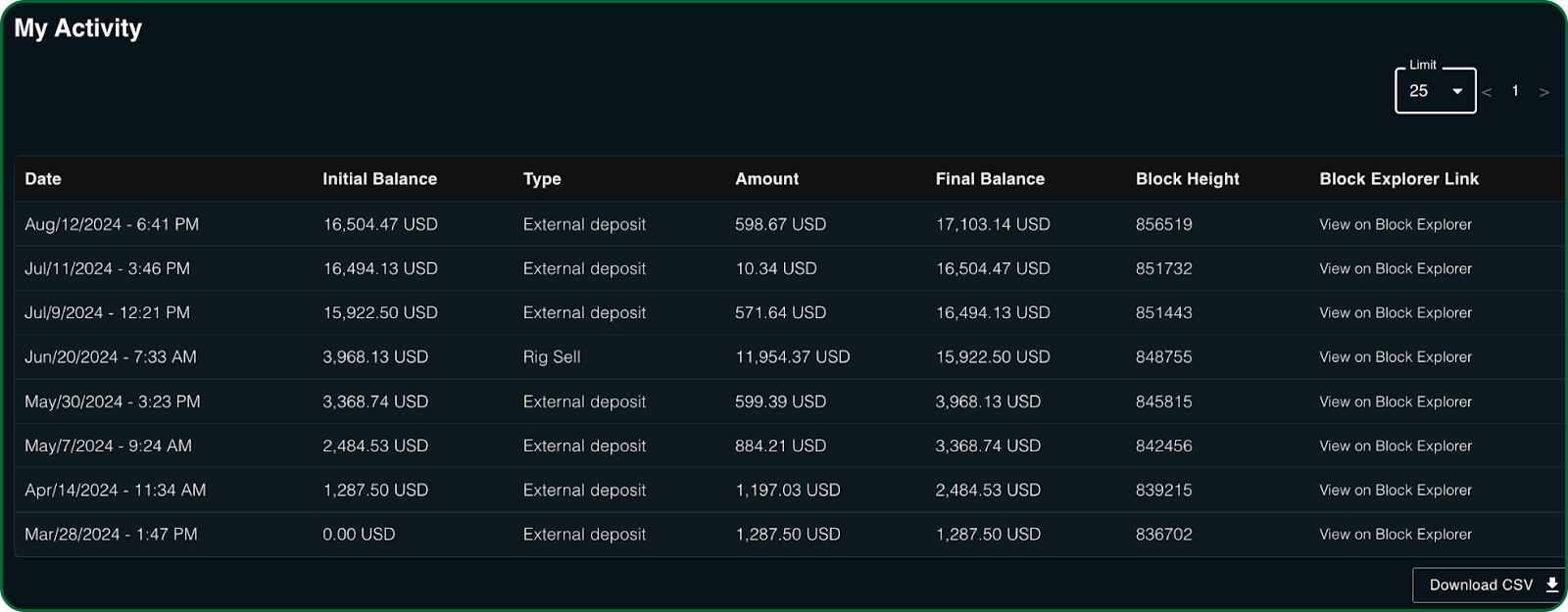
The Wallet section of the Marketplace provides you detailed information regarding your Wallet balance, wallet history, and Mining rewards payments.
Balance Summary
View your balance summary and historical payouts.
Balance: This is your wallet balance in BTC, with the equivalent USD value based on the current BTC price. It's important to note that this is your personal wallet, not a Blockware custodial account. This means your wallet balance reflects the total BTC you hold, including any assets beyond just the mining rewards or sales proceeds acquired through Blockware.
All Time Payouts: Your total lifetime mining rewards in BTC, with the equivalent USD value, received from the Blockware Pool.
Pending Balance: Your mining rewards pending balance below your specified Threshold (as discussed in the Wallet account setup section)
Payment Mode: Defines your rewards payment method defined as Threshold (as discussed in the Wallet account setup section)
Remaining Freezing Time: If a change was recently made to your Wallet configuration, the number of hours remaining on your Wallet Freeze.
Total Hashrate (24h): Total Hashrate applied to the Blockware Pool from your Miners in the last 24hrs.
Total Revenue (24h): Total revenue from the Blockware Pool from your Miners in the last 24hrs.

Revenue Summary
View Revenue over time on a chart
Last 7 Days, Last 14 Days, Last 30 Days: Your historical wallet balance over different selected time frames
Recent Activity
Explore your recent Wallet transactions.
Wallet Activity History: Access a list of your wallet activity, including incoming deposits or transfers. Each activity line contains a link to the on-chain transaction on the Block Explorer.
Download CSV: You can download your Wallet history to CSV for your personal records.
Transactions
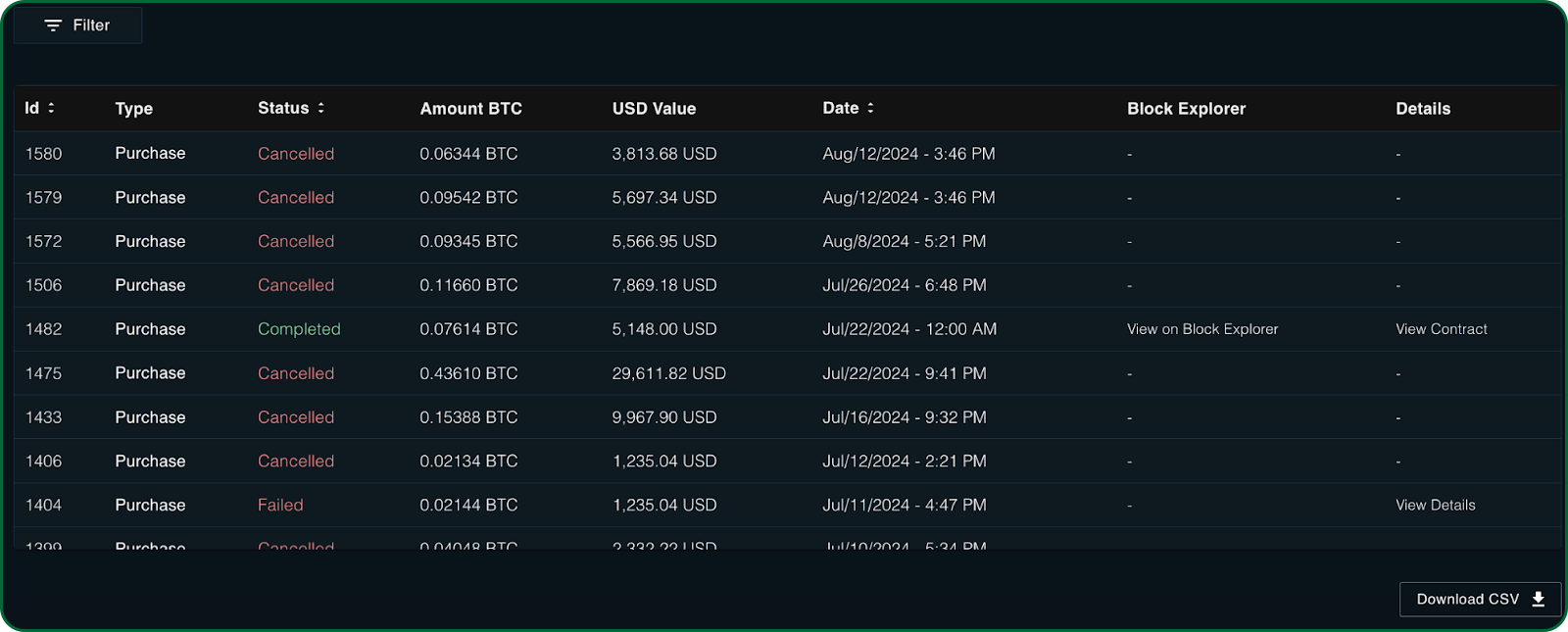
The transaction summary in your marketplace account provides a comprehensive view of all your purchases and sales, including associated hosting contracts and terms.
Transaction List: Access a detailed record of every transaction you've conducted.
Canceled Transactions: Displays any purchases you canceled during checkout.
Failed Transactions: Shows transactions that failed, often due to incomplete payments, typically from underestimated network fees.
View on Block Explorer: Track completed transactions on the BTC blockchain using any blockchain explorer.
Transaction Detail: Access completed contracts or additional information for pending transactions.
Download CSV: Export your entire transaction history to a CSV file for easy record-keeping.
Buying Bitcoin
Bitcoin OnRamp Aggregator
The Blockware OnRamp Aggregator helps users find the best rates and services for purchasing Bitcoin, integrating various exchanges and service providers to offer a seamless buying experience.
How to Purchase Bitcoin
Navigate to the “Buy Bitcoin” section in the marketplace.
Choose your on-ramp.
Choose your preferred payment method (e.g., bank transfer, credit card).
Enter the amount of BTC you wish to purchase.
Review the transaction details and confirm the purchase then follow the instructions as you are navigating to your selected on-ramp.
Support
At Blockware, we are here to help! Please reach out to support team for any questions or issues.
Accessing Support
Contact Support: If you need help, you can contact support via the “Support” section on the Marketplace, which offers email, live chat, and a knowledge base for troubleshooting common issues.
Conclusion
This section has outlined the key features of the Blockware Marketplace, including its capabilities for monitoring miner performance and trading mining rigs. With these tools at your disposal, you can optimize your mining operations, manage transactions effortlessly, and make informed decisions that enhance your profitability and efficiency in the competitive world of Bitcoin mining.
Questions to Gauge Understanding
What are the two primary functions of the Blockware Marketplace?
How does the Dashboard help you monitor your mining operations?
What information can you manage through the Wallet tab in the Marketplace?
How does the Miner Marketplace facilitate the buying and selling of mining rigs?
What are the benefits of setting a Bid in the Marketplace, and how does it impact the selling price?
What information can you track in the Transaction Summary tab?
How can you customize your account preferences in the Settings tab?